
Guide 3 of 5
From quote to invoice to paid
Send a quote, turn it into an invoice, share the PDF from your phone, and record the payment when it lands.
Quotes and invoices are the same document in Pinion with a different label, so you learn one screen and use it for both. Quotes are unlimited on every plan, including Free.
1. Open Invoices
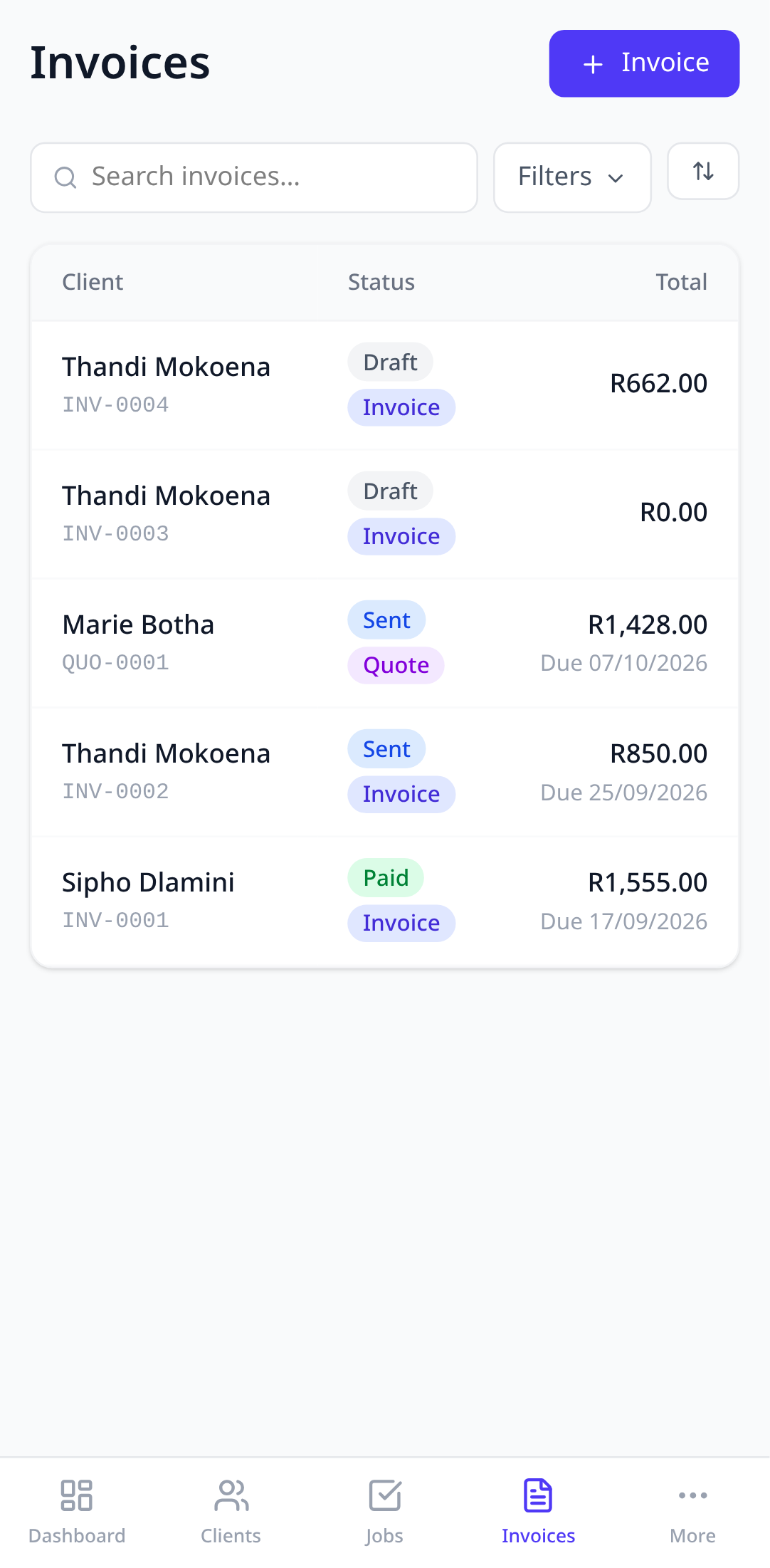
Tap Invoices in the bottom bar. The list shows quotes and invoices together, with a status on each: draft, sent, paid, or unpaid.
2. Start a new document
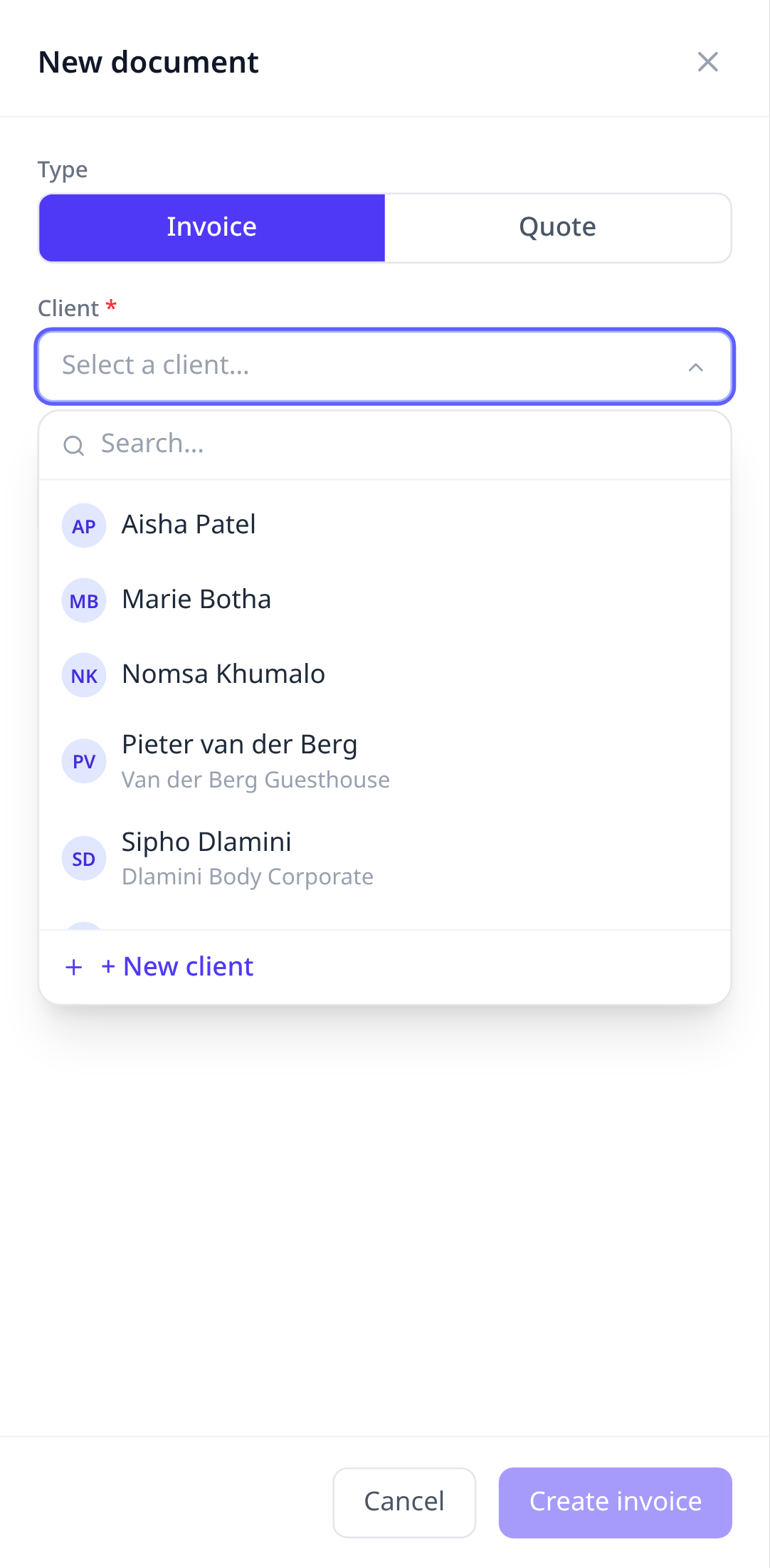
Tap the add button and choose Quote or Invoice. Pick the client. If you’ve set up services, choosing one fills in the usual line items.
3. Add line items
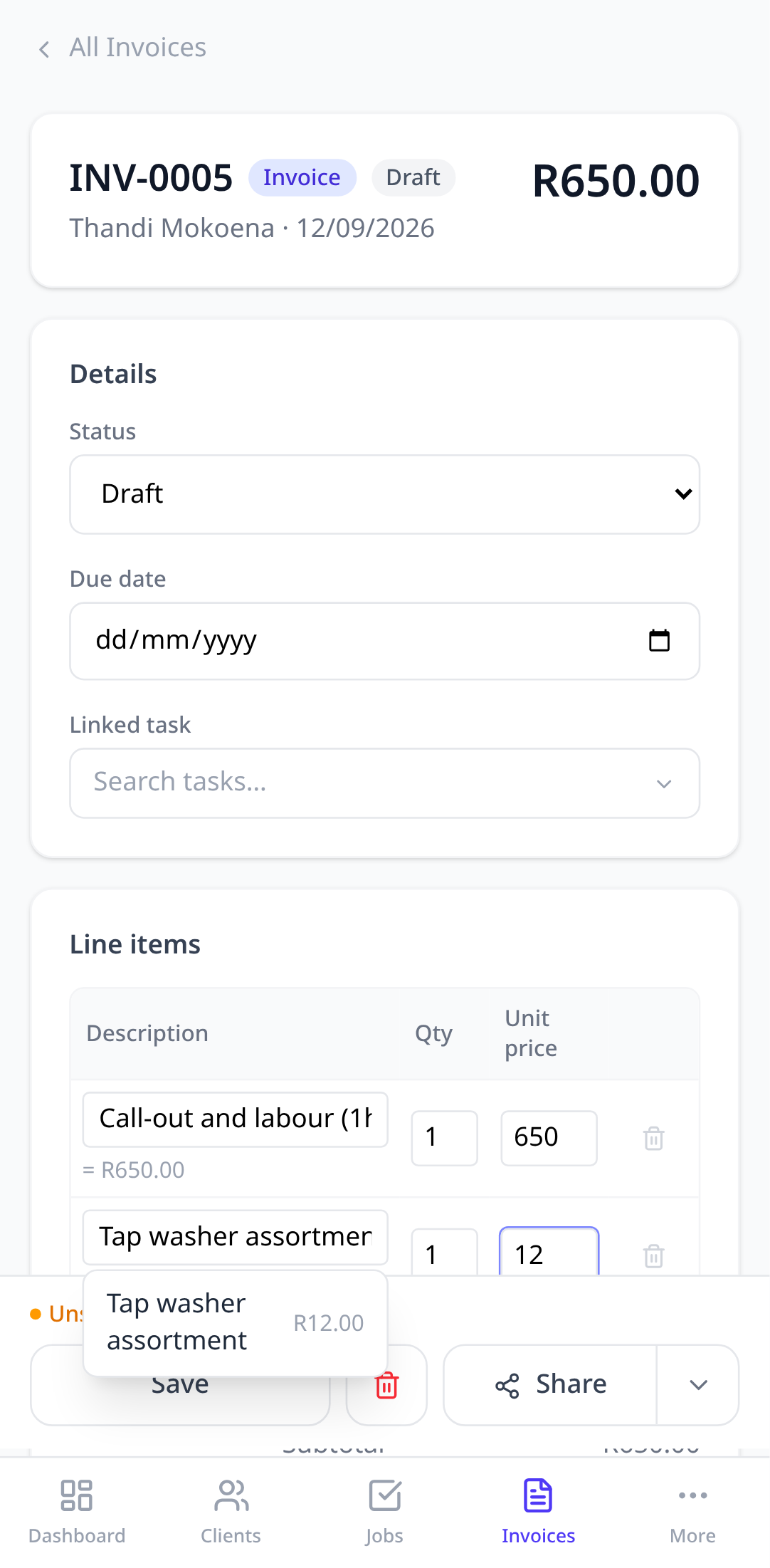
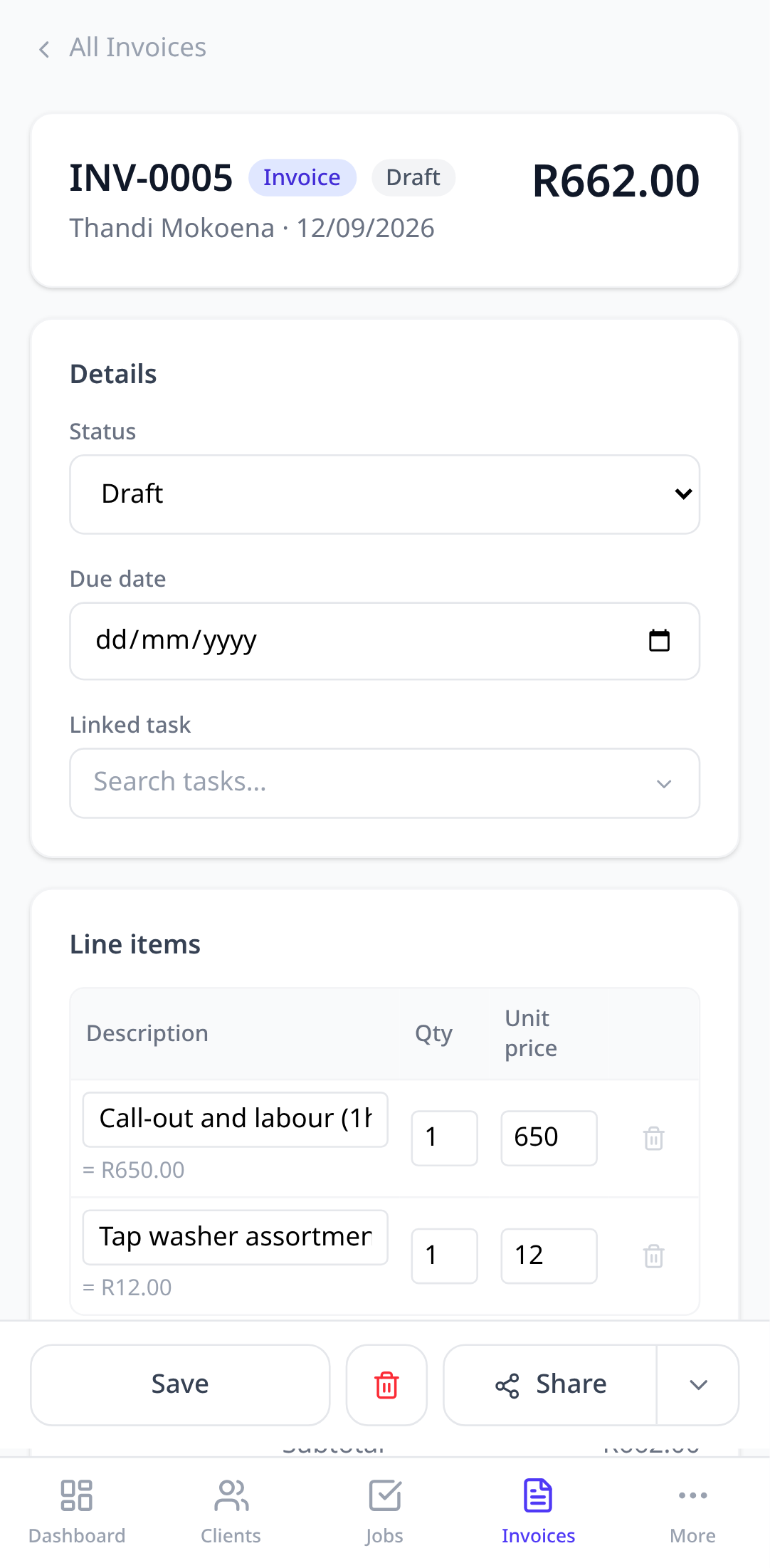
Each line has a description, a quantity, and a unit price. Link a line to a stock item and the stock is deducted when the job it belongs to is marked done. The total updates as you type.
4. Share it
Tap Share on the bar at the bottom of the document. On a phone this opens the normal share sheet with a PDF attached, so you can send it by WhatsApp, email, or anything else installed. On a desktop it downloads the PDF.
5. Turn the quote into an invoice
When the client says yes, open the quote and tap Convert to invoice. It gets the next invoice number and keeps every line item. The quote stays in your history.
6. Record the payment
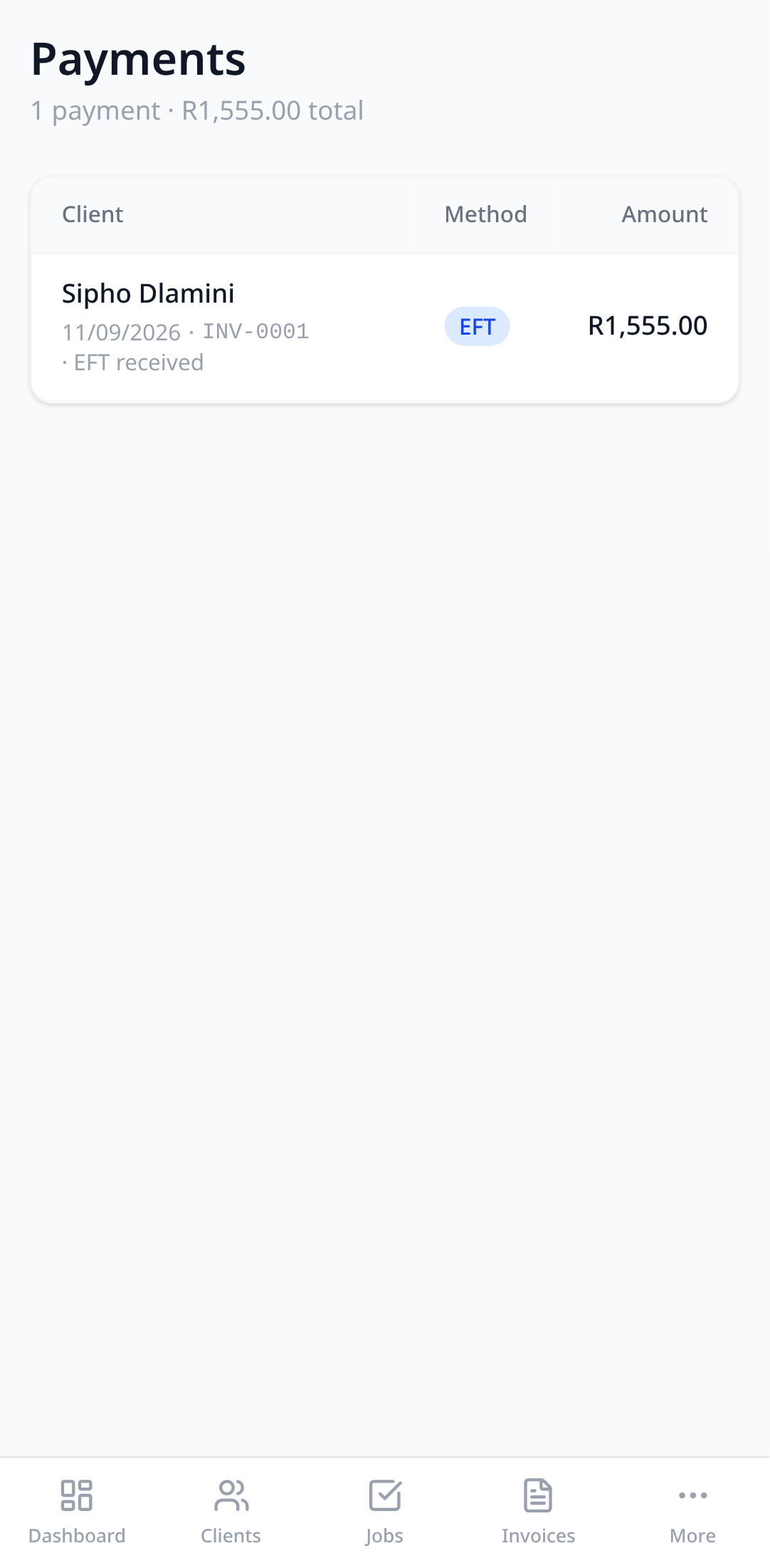
When the money arrives, open Payments and record it against the invoice. Part payments are fine. The invoice status moves to paid on its own, and the dashboard’s cash-flow cards update.
Not ready for an app yet?
There’s a free quote and invoice template in PDF and spreadsheet form. It covers the SARS fields and does the VAT maths, and it’s the same structure Pinion uses.
Invoice numbering and your details
Invoice numbers, the prefix, and the company details on the PDF all come from Settings. Set your company name, address, and a logo once and every document uses them.
Try it in your own account.
Free to start, no card. Set-up takes minutes, not weeks.